WheelPickV2
Pick with the eyedropper, tune with the wheel. A compact Windows color picker that turns color into something precise.
Sample any on-screen color with a magnified eyedropper, refine it on the color wheel, and copy an exact HEX, RGB, or HSL value for design work or AI instructions.
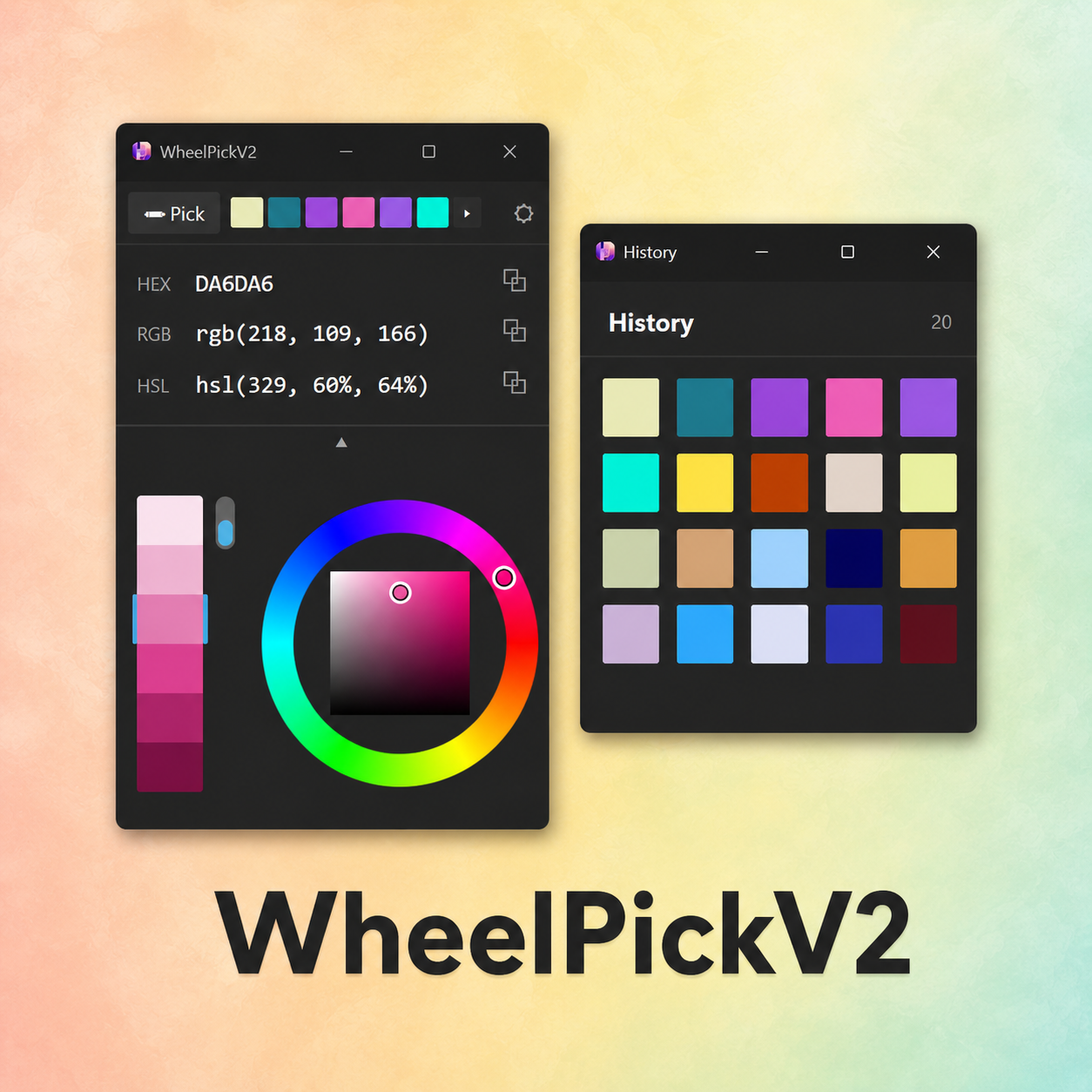
Product views
Screenshots
Features
Stay with the color after you pick it.
Most eyedroppers stop after sampling a color. WheelPickV2 keeps the eyedropper, color wheel, brightness variations, and history together in one compact window.
- Pixel-accurate picking with a magnified eyedropper
- Hue, saturation, and brightness adjustment on a color wheel
- View, enter, paste, and copy HEX; view and copy RGB and HSL
- Nearby and full-range brightness variations
- History of confirmed colors and configurable quick copy
- System tray access, optional hotkey, and startup launch
Install
Install and launch
Extract the ZIP
Extract the portable ZIP file to a folder of your choice.
Run WheelPickV2.exe
No installation is required. If SmartScreen appears, confirm the download source, choose More info, and then Run anyway.
Keep the data folder with the app
Settings and history are stored in data/state.json beside the executable. Move the whole folder when using the app from another PC or USB drive.
Manual
Basic operation
Pick a screen color
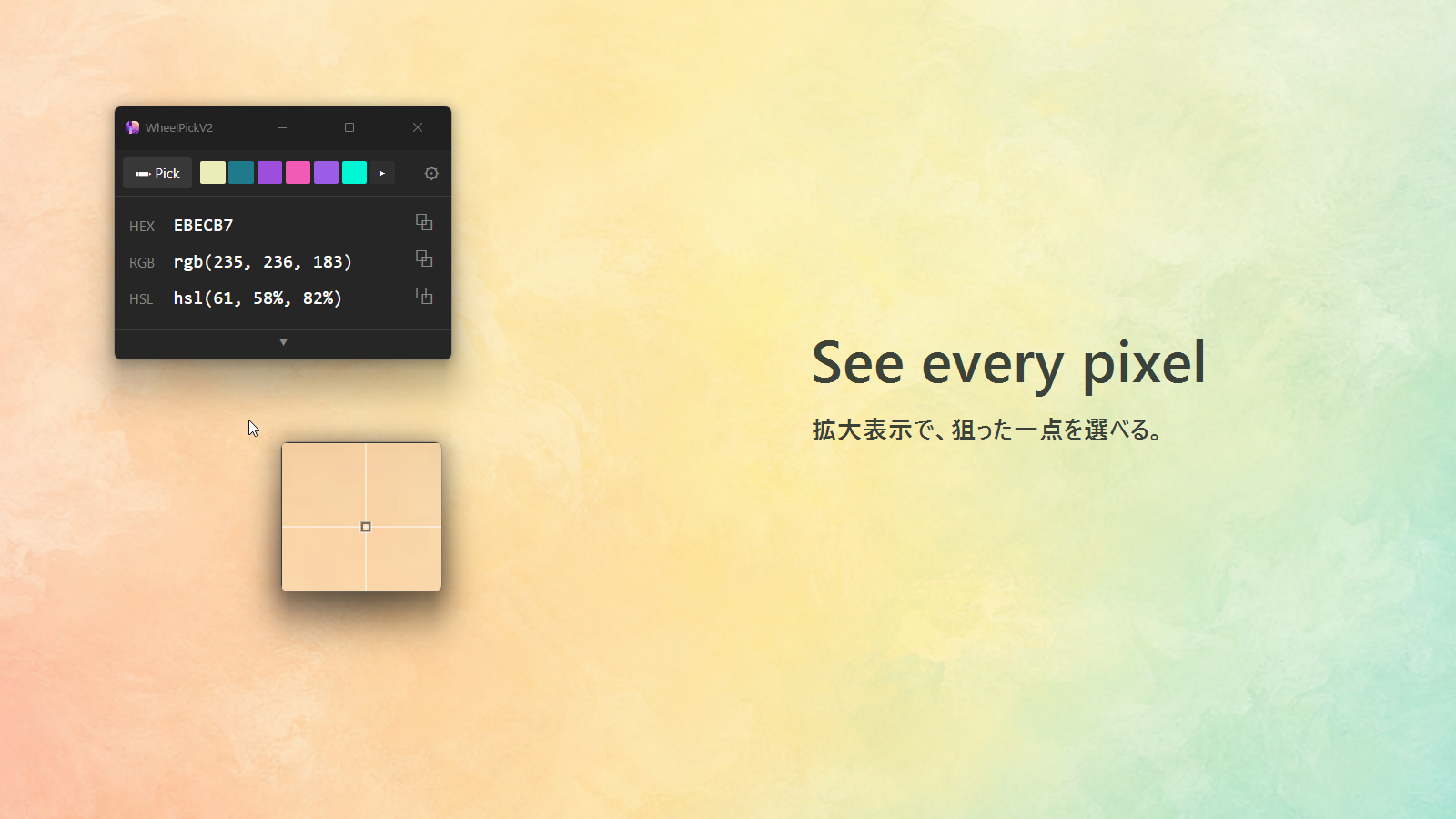
Start the eyedropper with Pick, a configured tray action, or a hotkey. Place the center of the magnifier over the target pixel and left-click to confirm. Press Escape to cancel.
Use the color value
The current color is shown as HEX, RGB, and HSL. Copy the format you need with its copy control. HEX values can also be entered or pasted directly.
Tune it on the wheel
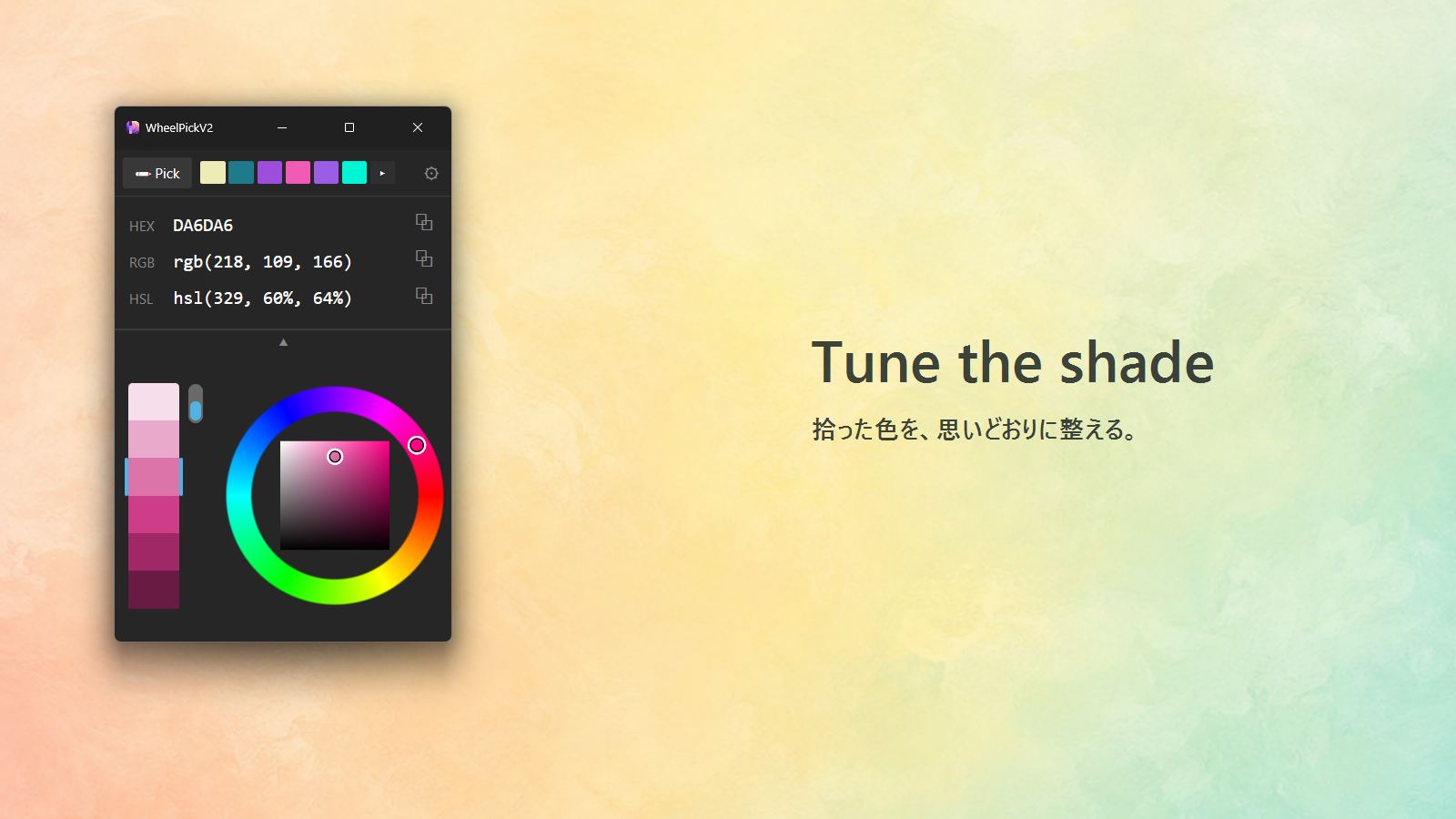
Open the wheel with the triangle button. Use the outer ring for hue and the inner square for saturation and brightness. The strip on the left offers brightness variations of the current color.
Return to a color from history
Confirmed colors are saved in history. Select one to restore and copy it. The number of saved colors can be changed in Settings.
Settings
Settings
- Run at startup: launch WheelPickV2 with Windows
- Hotkey / Hotkey action: choose the key and what it does
- Tray click: choose the left-click action for the tray icon
- History size: set how many colors to retain
- Quick copy format: choose what is copied when a color is confirmed
- Always on top: keep the main window above other windows
System tray
System tray controls
Closing the window leaves WheelPickV2 running in the system tray. To exit completely, right-click the tray icon and choose Quit.
- Show WheelPick: open the main window
- Settings: open Settings
- Pick Color: start the eyedropper
- Quit: exit the app
Requirements
Requirements and notes
- Windows 10 / 11
- Mouse or touchpad
- No installation required for the portable edition
- Unsigned editions may trigger a Windows SmartScreen notice