Windows app launcher · v0.1.0
RUNEEE
Available nowClick → Choose → Gone.
Your everyday apps, a click away from the taskbar. Choose an app and the launcher slips out of the way. A free Windows launcher with list and icon views, two groups, and seven color themes.
Windows 10 / 11 · x64 · Japanese & English · Free
Availability
Download
RUNEEE is available free on Microsoft Store, BOOTH, and itch.io. BOOTH also offers a ¥100 support edition. Choose the download that suits you.
Optional support never changes features or updates. For BOOTH downloads, extract the ZIP and open the setup program inside.
Product views
RUNEEE screens
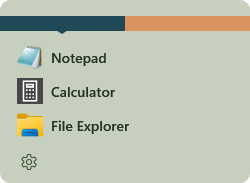
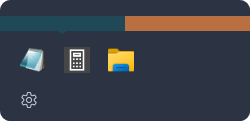
Product renderings using example registrations.
About RUNEEE
A little home for your everyday apps.
Launch & hide
Open your app. Get on with it.
Click the RUNEEE taskbar icon and choose an app. The list minimizes and waits for next time, leaving your workspace clear. Pinning it to the taskbar is recommended, but optional.
List or icons
Pick by name. Or by icon.
Use the list to see app names, or the compact icon view to save space. Split apps into two groups, such as work and hobbies. You can also show recently used apps at the top.
Make it yours
Your tools, in your order.
Search by name to add apps, or choose a file or shortcut when an app is not listed. Arrange your apps, choose group colors, and pick from seven themes including light and dark options.
No ads. No account required. App registrations and settings stay on your PC and are not sent to an external service. Privacy policy →
Quick start
First steps
Opening RUNEEE takes you straight to the app list. We recommend pinning it to the taskbar for easy access, but pinning is optional. RUNEEE never pins itself without your action.
- Install RUNEEE
Install the Microsoft Store edition from the Store. For BOOTH, right-click the downloaded ZIP, choose Extract All, and open the setup program inside. For itch.io, open the downloaded setup program. The direct edition needs neither administrator rights nor a separate .NET runtime.
- Pin to the taskbar (recommended)
Right-click the running RUNEEE icon and choose the Windows Pin to taskbar command. You can also use RUNEEE without pinning it.
- Select the RUNEEE icon
Select RUNEEE on the taskbar to show registered apps. It appears above the icon when Windows reports its position, or near the center otherwise.
- Choose an app
The chosen app opens and the launcher minimizes. Esc or a left-click outside the list also hides it. Closing the window or choosing Exit RUNEEE in Settings ends the waiting process as well.
Add apps
Register an app
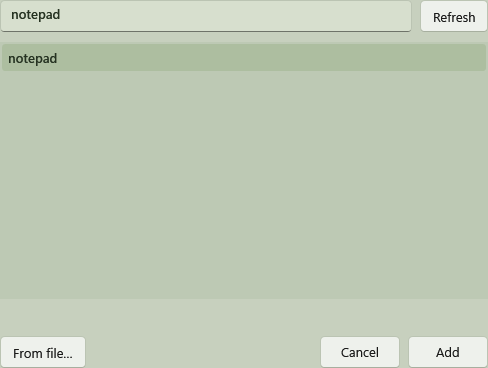
Open Settings from the gear at the bottom of the launcher. Press + beside Apps to search a local index built from the Windows Start menu and desktop.
- Press +
Open the app candidate window.
- Type an app name
Choose a matching candidate. The index is built when RUNEEE starts and can be refreshed from the candidate window.
- If it is not listed
Use From file… to select an executable or shortcut directly. RUNEEE does not constantly watch the PC or search file contents.
- Save
Review the name, group, and order, then save. Cancel restores the last saved state.
Two groups
Use two left/right groups
RUNEEE supports up to two groups. Switch between them using the split color strip at the top. Position and color distinguish the groups without requiring names.
- Round checks in Settings enable or disable each group
- Select the small color square for the group you want to edit
- Open the color wheel from the wide color sample
- Each group calculates its own height and screen placement
Settings
Using Settings
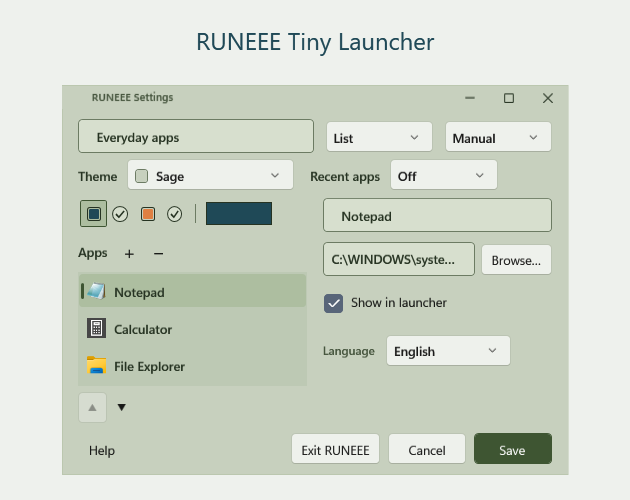
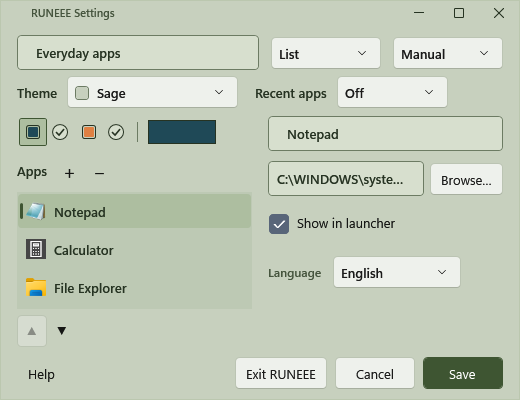
Settings brings launcher-wide options, two groups, registered apps, language, and the Exit command into one window. Changes remain a draft until you choose Save. Theme and language choices preview immediately, while Cancel or Esc restores the last saved state.
Launcher-wide options
- Launcher name
- An identification name used in Settings and accessibility information, not as a heading in the list. The normal launcher window title is RUNEEE Tiny Launcher.
- List / Icons
- List shows a vertical list with names. Icons hides visible names and uses a compact five-column grid, while preserving names in tooltips and accessibility information.
- Manual / Alphabetical
- Manual lets you reorder apps with ▲ and ▼. Alphabetical sorts automatically by display name.
- Theme
- Choose from seven light and dark themes. A selection previews immediately in Settings and the launcher, then Save confirms it.
- Recent apps
- Choose Off, 3 apps, or 5 apps. Recent items appear in history order above and separate from the normal list.
Two left/right groups
- Small color square
- Selects the left or right group to edit. Selection does not itself enable or disable the group.
- Round check
- Shows or hides that group in the launcher. The final remaining group cannot be disabled, and disabling a group does not delete its registrations.
- Wide color sample
- Changes the selected group color. Choose hue on the outer ring and saturation/brightness inside, or enter a six-digit HEX value beginning with #. Apply keeps the draft color; Cancel or clicking outside restores the previous color.
Registered apps
- +
- Opens app candidates. Name search uses a local index built from the Windows Start menu and desktop. Refresh rebuilds the index.
- From file…
- For an app absent from the index, select an EXE or shortcut directly. Select a candidate to enable Add; double-clicking also adds it.
- −
- Removes the selected registration from the Settings draft. It is not final until Save.
- App list
- Selects the app to edit. Its name, target, and visibility appear on the right.
- ▲ / ▼
- Moves the selected app one position in Manual order. These buttons are not used for Alphabetical order.
Selected app
- App name
- The name used in list view, tooltips, and accessibility information.
- Launch target
- The EXE or shortcut to open. Long paths are visually shortened with … when unfocused; the stored value is not shortened.
- Browse…
- Select an EXE or shortcut with the Windows file picker.
- Show in launcher
- Hide the app from the launcher without deleting its registration. You can show it again later.
Language, save, and exit
- Language
- Choose Follow OS, Japanese, or English. The preview changes immediately; Save confirms it, and Cancel restores the saved language.
- Prepare RUNEEE at sign-in
- Shown only in the Microsoft Store edition. Enable it and choose Save to start RUNEEE minimized after Windows sign-in. You can also disable it in Windows Startup apps.
- Help
- Open Quick help for basic controls, or About RUNEEE for version information.
- Exit RUNEEE
- Visible while RUNEEE is resident. It closes both the launcher and its waiting process normally. It does not uninstall RUNEEE or delete registrations.
- Cancel / Esc / close button
- Close Settings and discard all unsaved changes.
- Save
- Validate and save the launcher name, app names, targets, and other options. If a value is invalid, Settings stays open and identifies the problem and recovery action.
Fast launch
Keep RUNEEE ready
The optional sign-in setting starts only the small resident portion in advance. RUNEEE can then respond without reconstructing the WPF app every time you press the taskbar icon.
- Optional: select startup during setup for the direct edition, or in RUNEEE Settings for the Store edition
- The taskbar icon remains while the launcher is minimized
- Hover shows a thin colored preview; while Settings is open, its normal window preview may appear instead
- Exit RUNEEE in Settings or closing the window ends the resident process
- No tray icon, advertising, telemetry, account, or cloud sync
Windows notices
Windows warnings for the direct download
The direct BOOTH and itch.io edition is unsigned. Microsoft Defender SmartScreen may show a warning such as Windows protected your PC when downloading or opening it. Available actions vary with Windows settings and organization policies.
- Check that the download came from a destination linked by the official TINMOON page and that the file is the RUNEEE setup program
- Cancel if the source or warning is unexpected
- Smart App Control or organization policies may block execution. Keep protection enabled; use the Microsoft Store edition, or contact support
Update & remove
Updates and removal
The Microsoft Store edition updates through the Store. For BOOTH and itch.io, run the newer setup program over the installed copy. Setup stops before replacing files if RUNEEE cannot close safely, protecting unsaved settings.
- Remove the direct edition from Windows Installed apps
- Registrations, history, and settings remain by default for reinstallation
- The direct edition deletes local data only when explicitly selected during uninstall
- Store-edition data removal follows Windows MSIX management
Troubleshooting
If something does not work
- The launcher appears near the center instead of above the icon
This is the fallback when Windows cannot report the icon position. You can still choose an app normally.
- I unpinned RUNEEE
Open RUNEEE from Start to use it again. To pin it, right-click the running RUNEEE taskbar icon and choose Pin to taskbar.
- An app is missing from name search
Refresh the candidate index. If it is still absent, browse to its EXE or shortcut.
- A registered app no longer opens
Check whether the app was moved or removed, then register its current target again.
- RUNEEE is not ready after sign-in
Check whether RUNEEE is disabled in Windows Settings or Task Manager under Startup apps.
- Discard Settings changes
Use Cancel or Esc before saving to return to the launcher.
Privacy
Your registrations stay on your PC
Registrations, history, settings, the app-candidate index, and cached display icons remain on the device. RUNEEE itself does not communicate over the network and contains no advertising, analytics, telemetry, or account features.
Requirements
System requirements and support
When contacting support, include the Windows version, RUNEEE version, steps that produced the issue, and any message shown. Do not send passwords or unnecessary personal information.
- Windows 10 or 11
- x64 PC
- Taskbar pinning is recommended, not required
- Interface: Japanese, English, or follow the OS language
- Direct edition: no administrator rights; required .NET runtime included
- Microsoft Store edition: install from the Store
tinmoon.label@gmail.com